
해낸 만큼 자라는
할 일·캘린더The to-do list
that grows with you
말하듯 적으면 날짜와 태그가 알아서 들어가고, AI가 리스트까지 정리해요. 하나씩 끝낼 때마다 내 캐릭터가 자라요. 광고 없이 무료예요.Type the way you talk and the date and tags fill themselves in, then AI files it in the right list. Every finished task helps your character grow. Free, with no ads.
무료예요. 처음 열 때 보안 확인이 한 번 떠요 — 여는 방법Free. You will see a security prompt the first time you open it — how to open it
- 예시를 누르거나 직접 적어 보기Tap an example or type your own
- Enter로 추가 → AI가 정리Press Enter, watch AI sort it
- 동그라미를 눌러 끝내기 → +1 XPCheck it off for +1 XP
떠오르면 바로 적고,
정리는 AI에게Jot it down now.
Let AI tidy up.
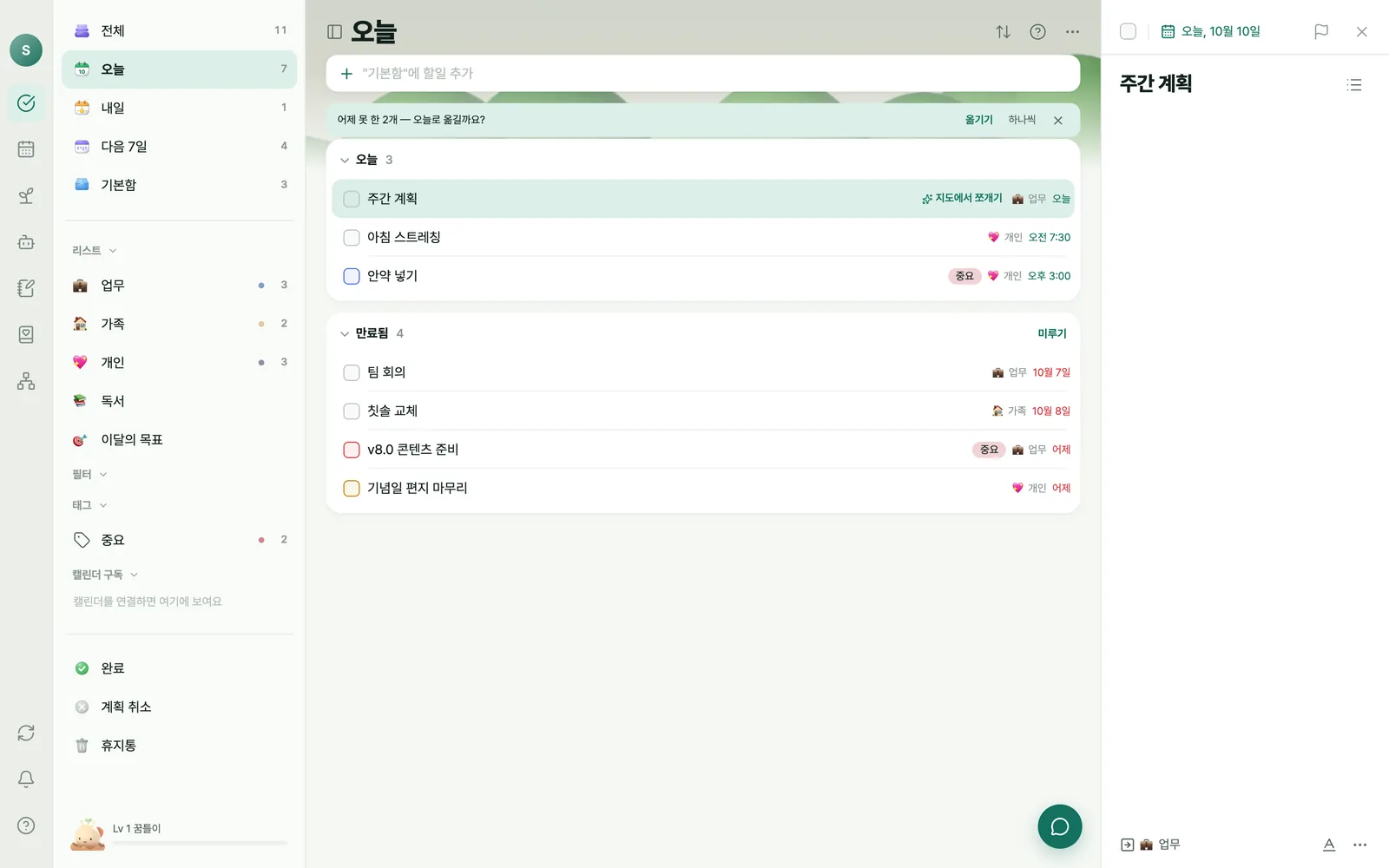
- 오늘 · 내일 · 다음 7일 · 기본함 스마트 목록Smart lists: Today, Tomorrow, Next 7 Days, Inbox
- 리스트 · 폴더 · 태그 · 필터, 반복 · 알림 · 체크리스트Lists, folders, tags, filters, repeats, reminders, checklists
- AI 자동 분류 · 자동 태그 — 마음에 안 들면 한 번에 되돌리기Auto-sorting and auto-tagging, with one-tap undo
- AI는 우리 서버에서만 돌고, 보낸 글은 남기지 않아요AI runs on our own server and keeps nothing you send
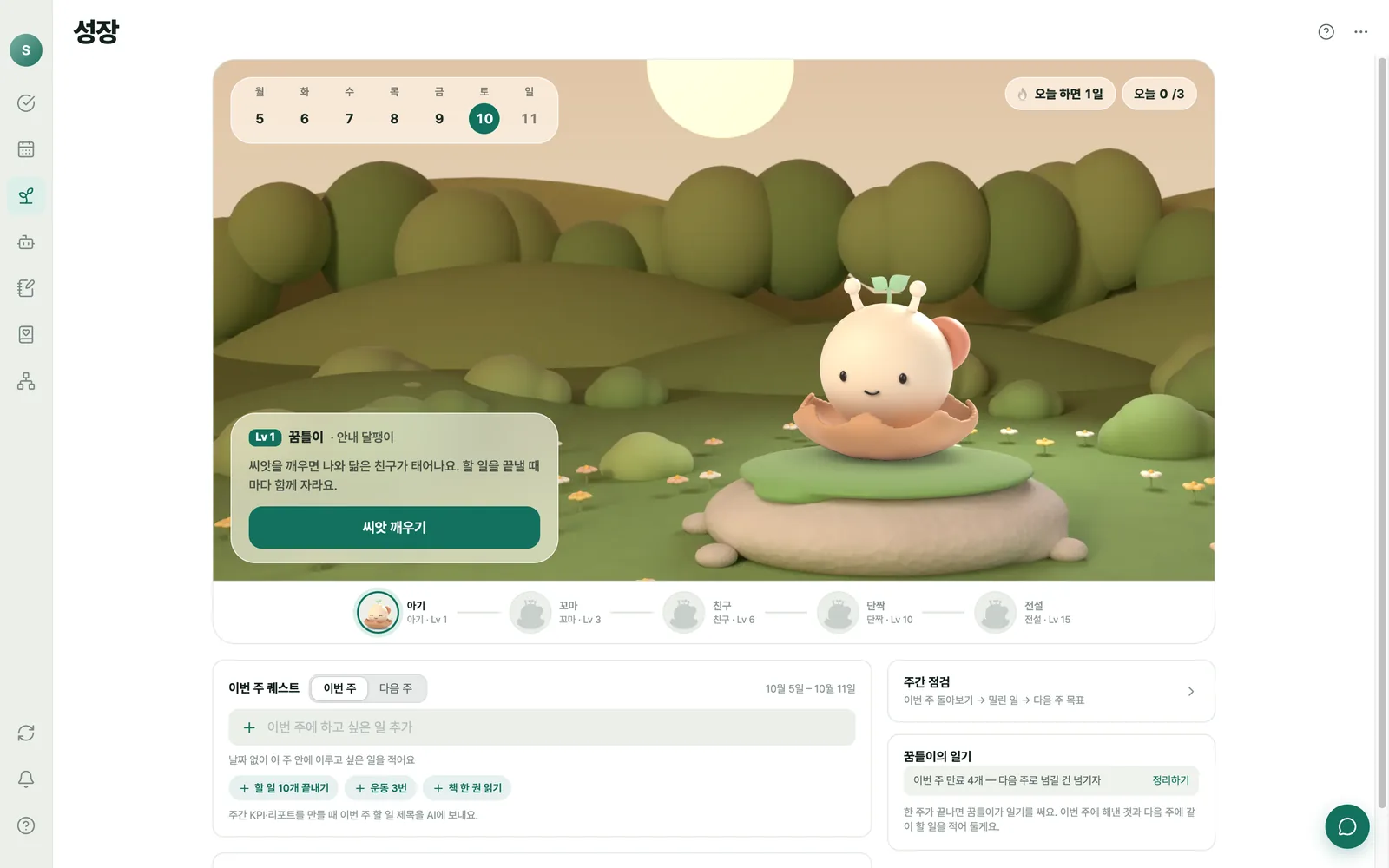
끝낸 일이
캐릭터를 키워요Finished tasks
grow your character
퀘스트를 하나씩 끝내 보세요. 알이 깨어나고, 레벨이 오르면 다음 모습으로 자라요.Finish a few quests. The egg hatches, and as you level up your character evolves.
- 퀘스트 체크하기Check off quests
- 캐릭터 눌러 쓰다듬기Tap the character
- 종 바꿔 보기Switch species
한 주는 퀘스트로 정하고, 주말엔 같이 돌아봐요Set the week as quests, then look back together
- 처음에 짧은 성향 질문으로 나에게 맞는 종이 알에서 나와요A few quick questions pick the species that hatches
- 할 일 1 XP · 퀘스트 30 XP · 주간 점검 30 XP · 정리 20 XP1 XP per task, 30 per quest, 30 per weekly review, 20 per tidy-up
- 레벨이 오르면 방을 꾸밀 장식이 하나씩 열려요Each level unlocks a decoration for the room
- 주간 리포트 — 숫자는 앱이 세고, 글은 AI가 써요Weekly report: the app counts, AI writes the note
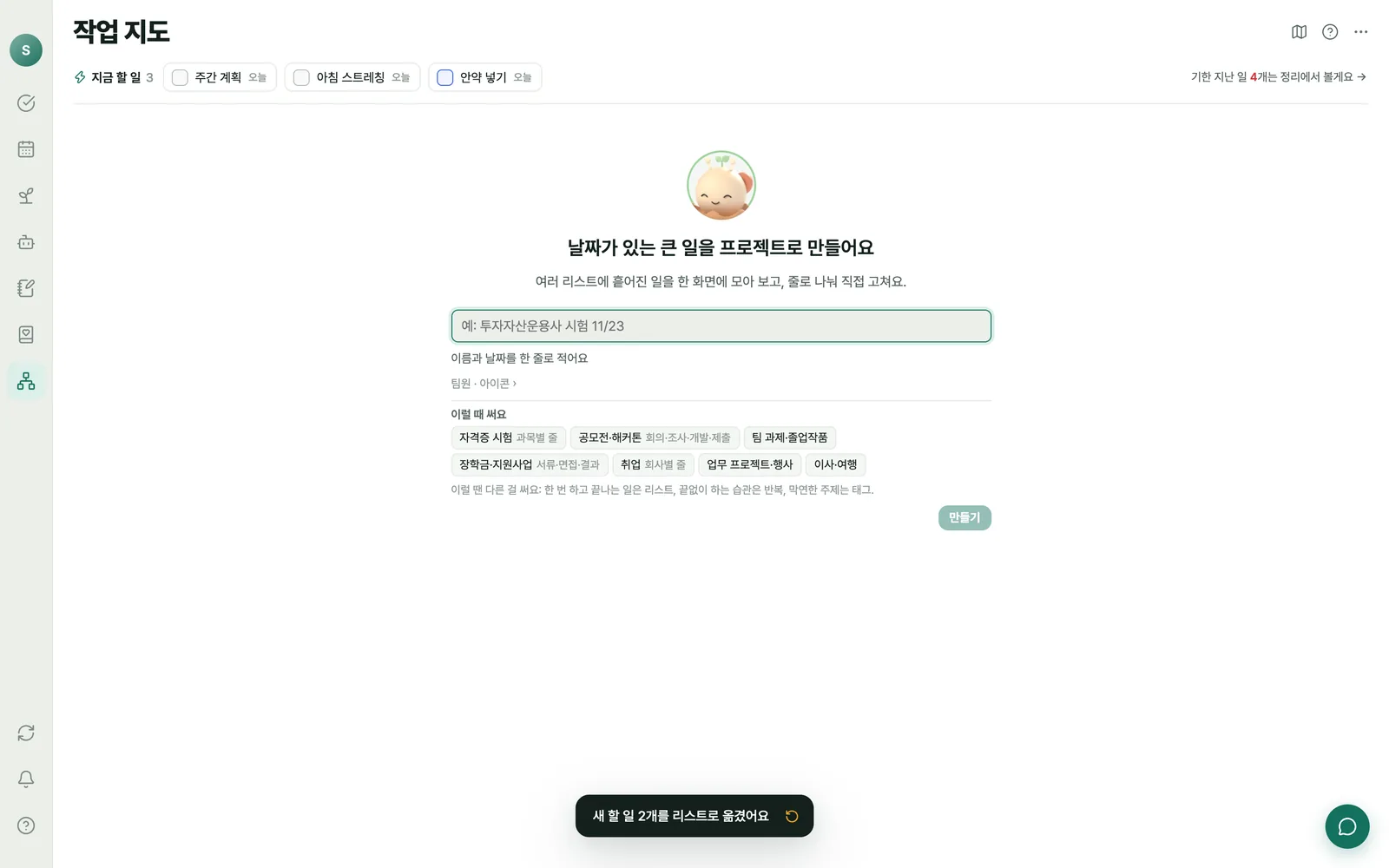
큰 일은 단계로 나눠
지도처럼 봐요Break big work into steps
and see it as a map
캐릭터와 짧게 이야기하면 단계가 지도에 바로 생겨요. 순서는 끌어서 바꿔요.A short chat with your character puts steps straight onto the map. Drag to reorder.
- 대화에서 대답 고르기Pick answers in the chat
- 카드를 끌어 순서 바꾸기 — 화살표가 따라와요Drag a card; the arrows follow
- 동그라미로 단계 끝내기Finish a step with the circle
흩어진 할 일을 프로젝트로 묶어 보기Scattered tasks, gathered into projects
- AI가 관련된 할 일을 찾아 프로젝트로 묶어요AI finds related tasks and groups them into a project
- 단계 보드 — 끝난 단계와 지금 할 단계Step board: what is done and what is next
- 타임라인 · 관계도 — 끌어서 날짜와 순서 바꾸기Timeline and relationship map, drag to change dates and order
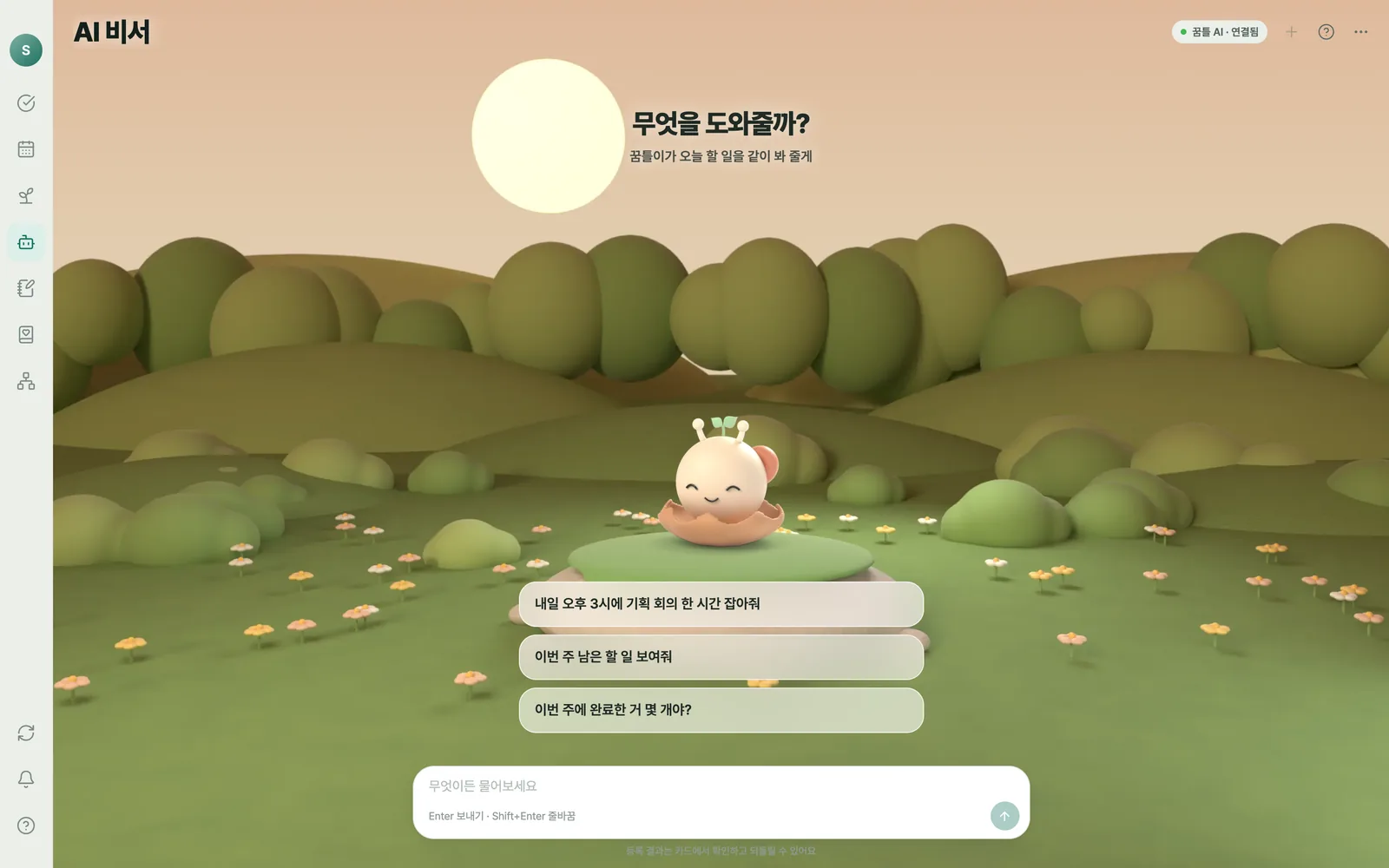
말로 시키면
꿈틀이가 정리해요Just say it,
and Kkumteul sorts it out
할 일을 말로 넣고, 지난 기록을 묻고, 이번 주 급한 일을 같이 골라요.Add tasks by talking, ask about your past, and pick this week’s priorities together.
물어보면 내 할 일·일정에서 찾아 답해요Answers from your own tasks and events
- “내일 오후 3시 회의 잡아 줘” — 말로 할 일·일정 만들기“Book a meeting tomorrow at 3pm” — create tasks and events by talking
- “미용실 간 지 얼마나 지났지?” — 지난 기록 찾아보기“How long since my last haircut?” — look things up in your history
- 저장하기 전엔 늘 카드로 보여 주고, 되돌릴 수 있어요Always shows a card before saving, and you can undo
- 꿈틀 서버에서만 돌아가요 — 인터넷은 보지 않아요Runs only on Kkumteul’s server and never browses the web
하루 끝에
꿈틀이와 이야기해요End the day
with a little chat
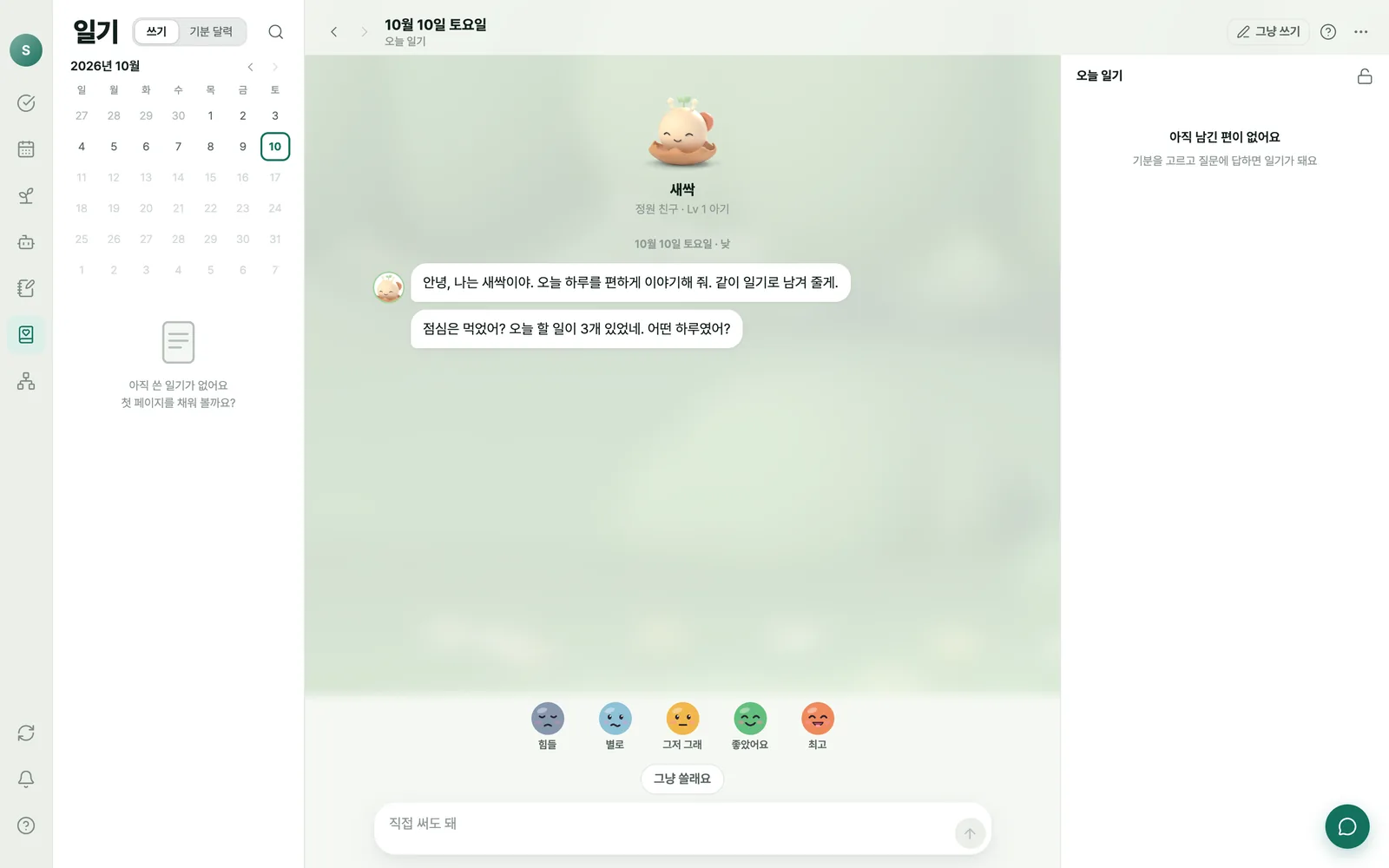
질문에 답하다 보면 일기가 돼요. 기분도 한 번에 남겨요.Answer a few questions and it becomes a journal entry. Log your mood in one tap.
말하듯 쓰고, 일기로 정리Write like you talk, keep it as a journal
- 오늘 한 일을 보고 캐릭터가 먼저 말을 걸어요Your character starts the chat from what you did today
- 나눈 이야기를 버튼 하나로 일기로 정리Turn the conversation into a journal entry with one button
- 기분 다섯 가지 — 달력에서 한눈에Five moods, seen at a glance on the calendar
- 그냥 쓰고 싶은 날은 자유롭게 쓰기Prefer to just write? Free writing is there too
그 밖에도And more
매일 쓰는 앱이라 작은 것까지 챙겼어요.Small things that matter when you use it every day.
수집함Inbox
메모·링크를 일단 던져 두면 할 일 · 메모 · 볼 것으로 나눠 줘요. iPhone에선 공유하기로 바로 모아요.Drop in notes and links; they get sorted into tasks, notes and things to read. Share straight from other apps on iPhone.
LLM 위키LLM wiki
태그가 곧 위키 페이지예요. 사람 · 프로젝트 · 주제별로 모인 내용을 AI가 한 쪽으로 정리해요.Every tag is a wiki page. AI summarises what you have collected about each person, project or topic.
캘린더Calendar
할 일과 일정을 한 달력에서 끌어 옮겨요. 한국 공휴일은 인터넷 없이도 보이고, 구글 · 맥 캘린더도 함께 봐요.Drag tasks and events on one calendar. Korean holidays show offline, alongside Google and Mac calendars.
위젯Widgets
맥 데스크톱 · 휴대폰 홈 화면 위젯에서 오늘 할 일을 바로 보고 체크해요.See and check off today’s tasks from desktop and home-screen widgets.
알림Reminders
할 일 알림, 하루 요약, 레벨업 소식을 놓치지 않게 알려 줘요.Task reminders, a daily summary and level-up news.
오프라인에서도Works offline
기기에 먼저 저장해서 바로 반응하고, 인터넷이 돌아오면 모든 기기에 맞춰요.Saved on your device first so it feels instant, then synced to every device when you are back online.
내 할 일은 내 것이에요Your tasks stay yours
할 일 앱엔 생활이 다 담겨요. 그래서 처음부터 이렇게 만들었어요.A to-do app holds your whole life, so we built it this way from day one.
AI는 우리 서버에서만AI runs on our own server
자동 분류·태그·요약은 운영자가 직접 돌리는 모델로 처리해요. 외부 AI 회사로 보내지 않아요.Sorting, tagging and summaries run on a model we host ourselves. Nothing is sent to third-party AI companies.
요청 원문은 저장하지 않아요Request text is never stored
AI에 보낸 글은 처리한 뒤 남기지 않고, 사용 횟수 같은 숫자만 기록해요. 서버 로그에도 할 일 제목을 남기지 않아요.Text sent to AI is not kept after processing; only counts are recorded. Task titles never appear in server logs.
광고·추적 없음No ads, no tracking
완전 무료이고, 광고도 분석·추적 도구도 넣지 않았어요.Completely free, with no ads and no analytics or tracking tools.
언제든 완전히 삭제Delete everything, anytime
앱 설정에서 계정과 모든 데이터를 바로 지울 수 있어요. 백업 사본도 14일 안에 사라져요.Delete your account and all data from settings. Backup copies are gone within 14 days.
이 페이지의 체험 창은 브라우저 안에서만 움직이고, 적은 내용을 어디에도 보내지 않아요.The try-it windows on this page run only in your browser and send nothing anywhere.
개인정보 처리방침 전문 보기 →Read the full privacy policy →
내려받고 여는 방법Download and open
아직 Apple · Microsoft 인증을 받기 전이라 처음 한 번은 직접 열어 줘야 해요. 그다음부터는 그냥 열려요.The app is not yet certified by Apple or Microsoft, so you need to allow it once. After that it opens normally.
Mac
- dmg 파일을 열고 꿈틀을 응용 프로그램 폴더로 끌어 넣어요.Open the dmg and drag Kkumteul into the Applications folder.
- 꿈틀을 열어요. "확인할 수 없음" 창이 뜨면 완료를 눌러요.Open Kkumteul. If it says it can’t be verified, click Done.
- 시스템 설정 › 개인정보 보호 및 보안 맨 아래에서 그래도 열기를 누르고, 한 번 더 열기를 눌러요.In System Settings › Privacy & Security, scroll down, click Open Anyway, then Open.
macOS 14 이하는 꿈틀을 Control-클릭 › 열기로도 돼요.On macOS 14 or earlier you can also Control-click the app › Open.
Windows
- 내려받은 설치 파일을 열어요.Open the installer you downloaded.
- "Windows의 PC 보호" 창이 뜨면 추가 정보를 눌러요.If “Windows protected your PC” appears, click More info.
- 실행을 누르면 설치가 끝나고 꿈틀이 열려요.Click Run anyway. It installs and opens Kkumteul.
Windows 10 · 11 (64비트)Windows 10 and 11 (64-bit)
새 버전은 이 페이지에서 다시 받아 덮어 설치하면 돼요. 할 일은 그대로 남아요.To update, download again from this page and install over the old one. Your tasks stay.
모든 설치 파일 보기 →All download files →
자주 묻는 질문FAQ
정말 무료예요?Is it really free?
네. 꿈틀은 무료이고 앱 안 결제나 광고가 없어요.
Yes. Kkumteul is free, with no in-app purchases and no ads.
어디서 받아요?Where can I get it?
Mac · Windows 앱은 이 페이지 맨 위 버튼으로 지금 받을 수 있어요(여는 방법). iPhone · Android 앱은 출시를 준비하고 있어요.
The Mac and Windows apps are available now from the buttons at the top of this page (how to open them). The iPhone and Android apps are on the way.
열 때 경고가 떠요. 괜찮아요?I see a warning when opening it. Is that OK?
네. 아직 Apple · Microsoft 인증서로 서명하기 전이라 처음 한 번 뜨는 확인이에요. 이 페이지의 버튼으로 받은 파일이면 여는 방법대로 열면 돼요.
Yes. The app is not signed with an Apple or Microsoft certificate yet, so you see this once. If you downloaded it from this page, follow these steps.
AI가 내 글을 읽거나 저장하나요?Does AI read or keep what I write?
자동 분류·태그처럼 AI 기능을 쓸 때만 그 내용을 우리 서버의 모델로 보내 처리해요. 처리한 원문은 저장하지 않고, 외부 AI 회사로 보내지도 않아요.
Only when you use an AI feature such as auto-sorting, the relevant text goes to the model on our own server. The text is not stored afterwards and never goes to third-party AI companies.
인터넷이 없어도 되나요?Does it work offline?
네. 할 일 추가·수정·완료는 기기에 먼저 저장돼서 오프라인에서도 그대로 돼요. 다시 연결되면 다른 기기와 자동으로 맞춰요. AI 기능만 연결이 필요해요.
Yes. Adding, editing and completing tasks are saved on the device first, so they work offline and sync when you reconnect. Only AI features need a connection.
캐릭터는 어떻게 자라요?How does the character grow?
할 일을 끝내면 1 XP(하루 10 XP까지), 이번 주 목표를 이루면 30 XP, 주간 점검은 30 XP, 정리는 20 XP를 받아요. 레벨 3 · 6 · 10 · 15에서 다음 모습으로 자라요. 이 페이지의 체험은 빨리 보여 드리려고 레벨이 훨씬 빨리 올라요.
1 XP per finished task (up to 10 a day), 30 XP per weekly goal, 30 XP for a weekly review and 20 XP for a tidy-up. It evolves at levels 3, 6, 10 and 15. The demo on this page levels up much faster so you can see it.
계정을 지우려면요?How do I delete my account?
앱의 설정 › 계정 › 계정 삭제에서 바로 지울 수 있어요. 앱을 쓸 수 없을 땐 계정 삭제 안내를 봐 주세요.
Go to Settings › Account › Delete account in the app. If you can’t use the app, see how to delete your account.
앱 화면은 영어도 되나요?Is the app available in English?
첫 버전의 앱 화면은 한국어로 나와요.
The first release of the app is in Korean.